Local Model Fine-Tuning with Unsloth on DGX Spark
In this tutorial, you will fine-tune a large language model on a single DGX Spark using Unsloth.
The Spark can be used as a standalone computer by connecting a monitor and keyboard, or as a server accessed remotely from another computer. In this tutorial, we will connect to the Spark remotely, install the necessary software, and fine-tune the model.
We will use GPT-OSS 20B (a 21-billion parameter Mixture-of-Experts model) as the model, Unsloth as the fine-tuning framework, and Reinforcement Learning (RL) as the training method. Unsloth will load the model with 4-bit quantization (QLoRA) and train only small LoRA adapters, achieving up to 70% memory savings. The training will teach the language model to play the game “2048”.
This tutorial consists of three parts:
- Setup: Building the Docker image and starting the container
- Training: Running the notebook, loading the model, and GRPO training
- Results: Testing the fine-tuned model and shutdown
This tutorial is for a single Spark; fine-tuning does not require multiple Sparks.
Setup
1. Connecting to the Spark
If you are connecting to the Spark remotely for the first time, you need to find its IP address. Connect a monitor and keyboard to the Spark, log in, and run the following command in the terminal:
The command returns the IP address of the Spark’s default network interface:
Note this address; you will use it in place of throughout the tutorial. Alternatively, you can find the IP address by checking the NVIDIA Sync application.
Make sure your computer is connected to the same network as the Spark. Then, open a terminal on your computer and connect to the Spark via SSH:
On the first connection, you will see a fingerprint warning. Type yes and press Enter. When prompted for a password, enter the Spark’s password:
Once connected, the Spark will start accepting commands sent from this terminal. Throughout the tutorial, you will enter all commands you encounter into this terminal on your computer.
2. Building the Docker Image
Unsloth requires triton and xformers kernels specifically compiled for the GB10 Grace Blackwell Superchip. These kernels are not available in standard Docker images; therefore, we will build our own Docker image using the Dockerfile provided by Unsloth for DGX Spark.
First, download the Dockerfile:
This Dockerfile includes the following:
nvcr.io/nvidia/pytorch:25.11-py3- Version: NGC PyTorch 25.11
- Purpose: Base image (PyTorch 2.10, CUDA 13.0)
- triton (compiled from source)
- Version: 3.4.0
- Purpose: Attention kernels for Blackwell (SM 12.1) support
- xformers (compiled from source)
- Version: 0.0.33
- Purpose: Memory-efficient attention for Blackwell (SM 12.1) support
- unsloth
- Version: 2026.7.5
- Purpose: Fine-tuning optimization (2x speed, 70% less VRAM)
- unsloth_zoo
- Version: 2026.7.6
- Purpose: Unsloth utilities
- bitsandbytes
- Version: 0.50.0
- Purpose: 4-bit quantization (NF4)
- transformers
- Version: 4.56.2
- Purpose: Model loading and tokenization
- trl
- Version: 0.22.2
- Purpose: GRPO training loop
Now build the image.
This process will take approximately 25–30 minutes:
During the build, you will see the following stages:
When the build is complete, you will see the following output:
Important: The
UndefinedVarwarnings are harmless and can be ignored.
Let’s verify the image:
3. Starting the Container
Start the Docker container that will be used for training, with GPU access and volume mount parameters:
Training
4. Downloading the Notebook
Download Unsloth’s RL notebook that teaches the GPT-OSS 20B model to play 2048:
This Jupyter notebook consists of 60 cells and includes the following steps:
1. Loading the model with 4-bit QLoRA
2. Adding LoRA adapters
3. Setting up the game environment
4. Defining reward functions
5. Training for 1000 steps with GRPO (Group Relative Policy Optimization)
6. Saving the fine-tuned model
5. Launching Jupyter and Running the Notebook
Start the Jupyter notebook server inside the container:
This server provides a web interface that allows you to edit and run .ipynb files on the Spark. To access the interface, go to the following address from your computer’s browser:
http://<spark-ip>:8888/tree?token=<token>
Replace the with the token you see in the terminal (e.g., 0388154bcd8cca584336b88ea9b84d09dbc302068f1e9a49). Open the notebook by clicking on gpt_oss_20B_RL_2048_Game.ipynb from the file browser.
Saving the Model: During training, a checkpoint is automatically saved to the outputs/ directory every 100 steps along with the LoRA adapter weights. However, the option to save the merged version of these adapter weights with the original model is disabled. If you want to save the model for inference with vLLM after training, you must enable this option before running the notebook. To do this, go to the last cell of the notebook (Cell 58) and change the if False: lines in that cell to if True:. You can choose either MXFP4 (OpenAI’s 4-bit format) or 16-bit format:
Select Cell → Run All from the menu bar to run all cells sequentially at once. As each cell runs, you will see In [*]: on its left side; when completed, they will be numbered as In [1]:, In [2]:, and so on. Jupyter will handle the rest of the training process. You can monitor the notebook’s progress from the web interface if you wish.
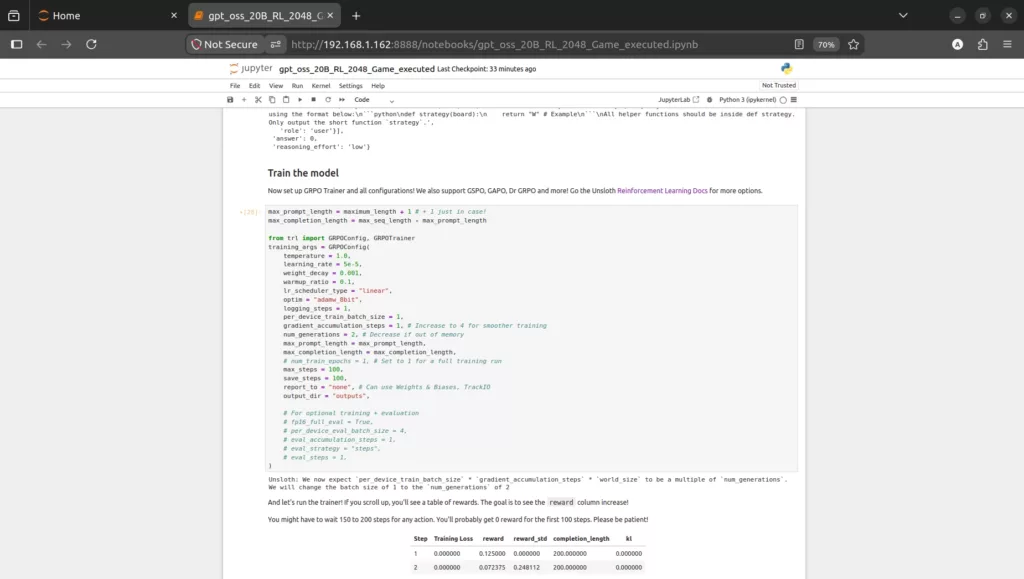
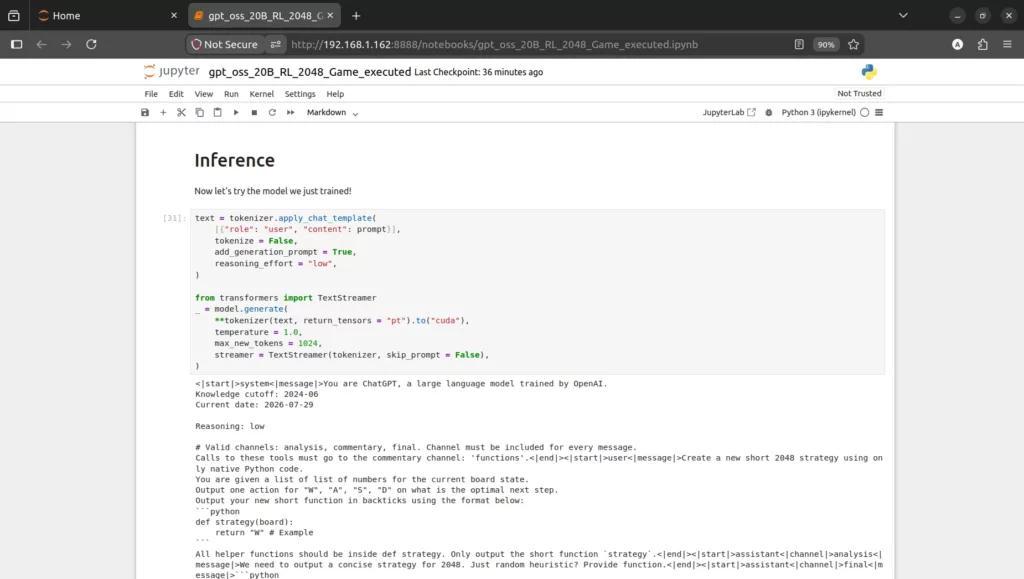
Below are some screenshots from the notebook’s web interface after training. Here you can see various code cells and explanations:
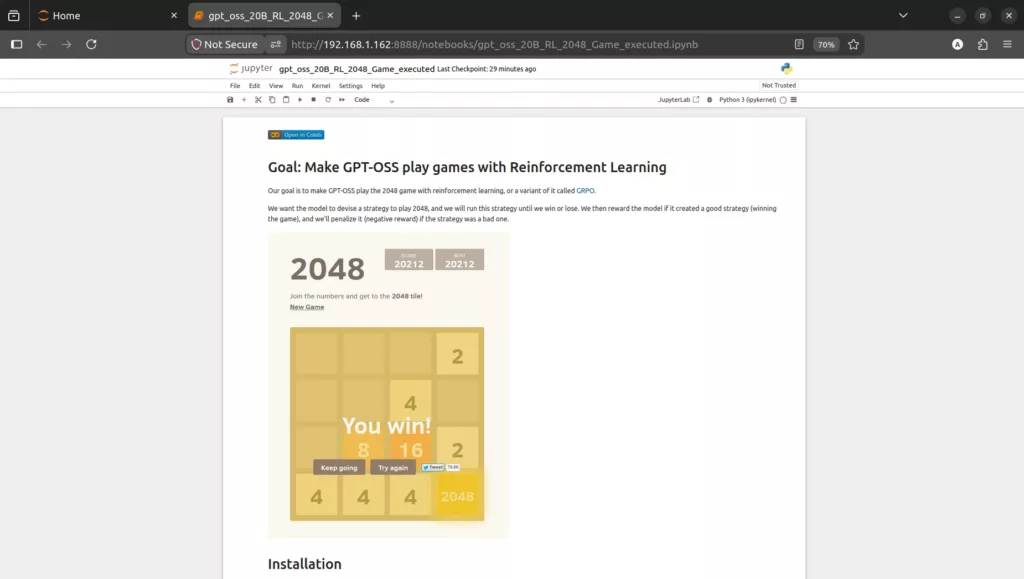
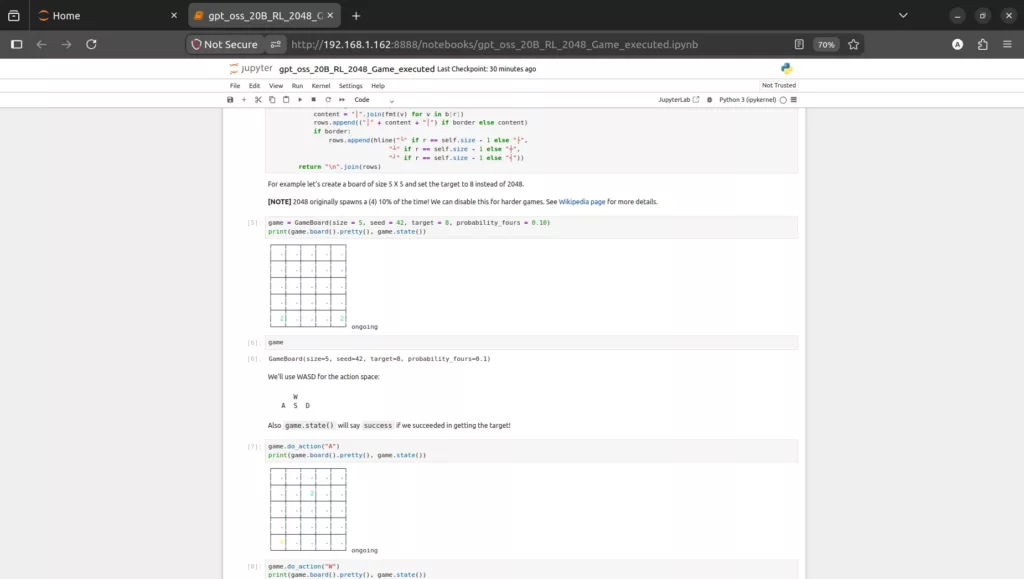
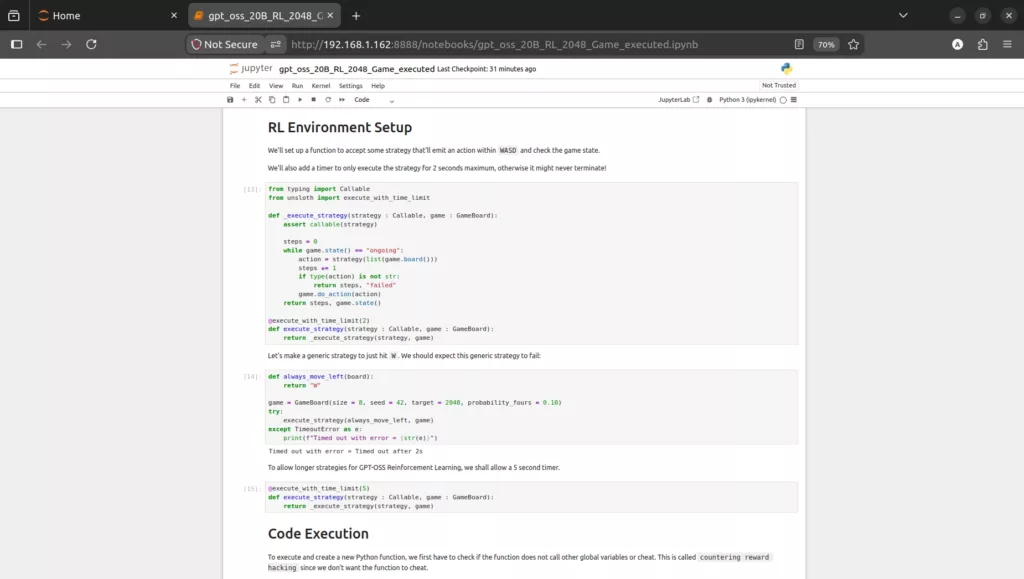
As the notebook cells run, the following steps will occur in sequence.
Loading the Model
The first code cell (Cell 5) loads the model with 4-bit quantization. This step downloads the model from HuggingFace (~12 GB) and loads it into GPU memory:
Then LoRA adapters are added (Cell 7):
At this point, the model is ready.
7. GRPO Training
Training begins when the trainer.train() cell runs. The GRPO (Group Relative Policy Optimization) algorithm repeats the following loop 1000 times:
1. The model is sent the prompt “write a strategy function for 2048”.
2. The model generates 2 candidate functions.
3. Each function is executed:
- Is it valid Python? (
function_worksreward) - Is it cheating? (
no_cheatingreward) - Does it win the 2048 game? (
strategy_succeedsreward)
4. Rewards are calculated and LoRA weights are updated
When training starts, you will see the following output:
In the initial steps, the model mostly produces strategies that time out or throw errors. After approximately 150-200 steps, the model starts producing valid strategies and begins winning games. After 1000 steps and approximately 4 hours of training, the model plays 2048 much better than the original.
During training, you will see the reward values for each step:
When you see State = success, the model has produced a strategy and reached 2048. When training is complete, you will see the following output:
Results
8. Evaluating the Fine-Tuned Model
After training, the notebook tests the model’s ability to generate a new strategy (as a Python function). The fine-tuned model produces sophisticated strategies that analyze the game board, count empty cells, and identify possible merges:
This strategy scores the number of empty cells and possible merge opportunities for each move and selects the highest-scoring move.
This is a commonly used heuristic approach in the game 2048.
9. Shutdown
When you are done, exit the container with exit. First stop the Jupyter server with Ctrl+C.
The container stops but the Docker image, model cache, and training outputs remain on disk.
To resume training, simply run the docker run command from step 3 again.
The unified memory usage during training is as follows:
- Idle Spark
- Memory Usage: ~4 GB
- Model loaded (4-bit QLoRA)
- Memory Usage: ~17 GB GPU + ~1 GB embedding offload
- Training active
- Memory Usage: ~30 GB system total
- Free memory
- Memory Usage: ~90 GB
If the same training steps are applied to the GPT-OSS 120B model,
approximately 68 GB of unified memory is used — which fits comfortably
within the DGX Spark’s 128 GB unified memory.